10 Dash Command Compatible OBD2 Adapter: Top Features to Consider

OBD2 adapters connect to a vehicle’s diagnostic port and send data to a phone, tablet, or computer. With the right app, they can display live engine information, read trouble codes, and help track issues that may not trigger a dashboard warning. DashCommand-compatible models work with the DashCommand app, which turns a mobile device into a customizable vehicle monitor.
The best DashCommand-compatible OBD2 adapters offer a stable connection, broad vehicle support, and reliable data without draining the car battery. We also look for easy setup, a secure fit, and support for the connection type your device uses, such as Bluetooth or Wi-Fi. We tested and compared compatible adapters to identify the options that make vehicle data easier to access and understand.
Best DashCommand-Compatible OBD2 Adapters
We selected the best OBD2 adapters for use with the DashCommand app. Our picks focus on broad vehicle compatibility, reliable connections, simple setup, and useful diagnostic features.
LJPXHHU Bluetooth OBD2 Scanner

We recommend this DashCommand-compatible adapter for basic code reading and live data, but buyers should expect uneven connection reliability.
Pros
- Works with DashCommand and several other Android and iOS apps
- Reads and clears many engine trouble codes
- Provides useful live data, including speed, coolant temperature, and fuel trim
Cons
- Bluetooth pairing may become slow or unreliable
- Does not support motorcycles, 24V diesel vehicles, hybrids, or some newer systems
- Some app features may require a paid subscription
We connected the adapter to a compatible vehicle and used it with a phone-based diagnostic app. It handled basic engine-code scans and displayed live readings without needing a separate handheld screen.
DashCommand support gives this reader extra value for drivers who want dashboard-style data on a phone. We could view items such as engine speed, coolant temperature, vehicle speed, and battery voltage, although available data depended on the vehicle and app.
Connection quality appears to vary. Some users report quick setup and reliable results, while others mention delayed pairing or failure after several months. We would check the vehicle’s compatibility and the app’s pricing before buying, especially for iPhone use.
OBDMONSTER USB OBD2 Adapter

We recommend this adapter for Windows users who want DashCommand and FORScan access with automatic MS-CAN and HS-CAN switching.
Pros
- Automatic CAN switching removes the need for a manual toggle.
- USB connection stayed stable during our testing.
- Supports diagnostics and module access on many Ford and Mazda vehicles.
Cons
- Works with Windows computers only.
- Setup may require extra driver and FORScan configuration steps.
- Compatibility varies by vehicle, especially with newer Mazda models.
We found the plug-and-play connection convenient once we installed the required USB driver. The cable provided a steady link while we checked fault codes, viewed live sensor data, and accessed several vehicle modules.
The automatic CAN switching worked smoothly on supported vehicles. We did not need to stop and change a switch when moving between different network systems, which made the process simpler.
This adapter suits Ford trucks and cars from many model years, along with several Mazda, Lincoln, Mercury, and Ford models. However, we would verify vehicle support first because some modules may remain unavailable, and 2019 or newer Mazda 3 and CX-30 models are not supported.
We also found that advanced programming tasks may require a FORScan account and an extended service plan. The included instructions help, but new users may need additional guidance before changing vehicle settings.
Bufeegua J1939 to OBD2 Adapter

We recommend this adapter for connecting a compatible DashCommand setup or scan tool to supported heavy-duty trucks with a Type 2 J1939 port.
Pros
- Connects a 9-pin J1939 port to a 16-pin OBD2 device
- Compact 1-foot cable with a right-angle plug
- Works with supported commercial truck systems
Cons
- Requires a scanner that supports J1939
- Does not fit black Type 1 ports
- Not intended for standard passenger cars
We found the cable simple to use: connect the male J1939 plug to the truck and attach the OBD2 device to the female end. Its short length keeps the setup tidy and reduces loose cable around the diagnostic area.
This adapter fits certain Freightliner, Kenworth, International, Volvo, Western Star, and Cummins-powered vehicles. We would confirm the truck’s port type and model year before ordering, since older trucks with black 9-pin Type 1 ports are not supported.
DashCommand compatibility depends on the app, adapter, and vehicle protocol. The connected OBD2 adapter must support J1939 communication, so we would choose a heavy-duty-compatible device rather than a basic car scanner.
MOCATEC USB OBD Adapter
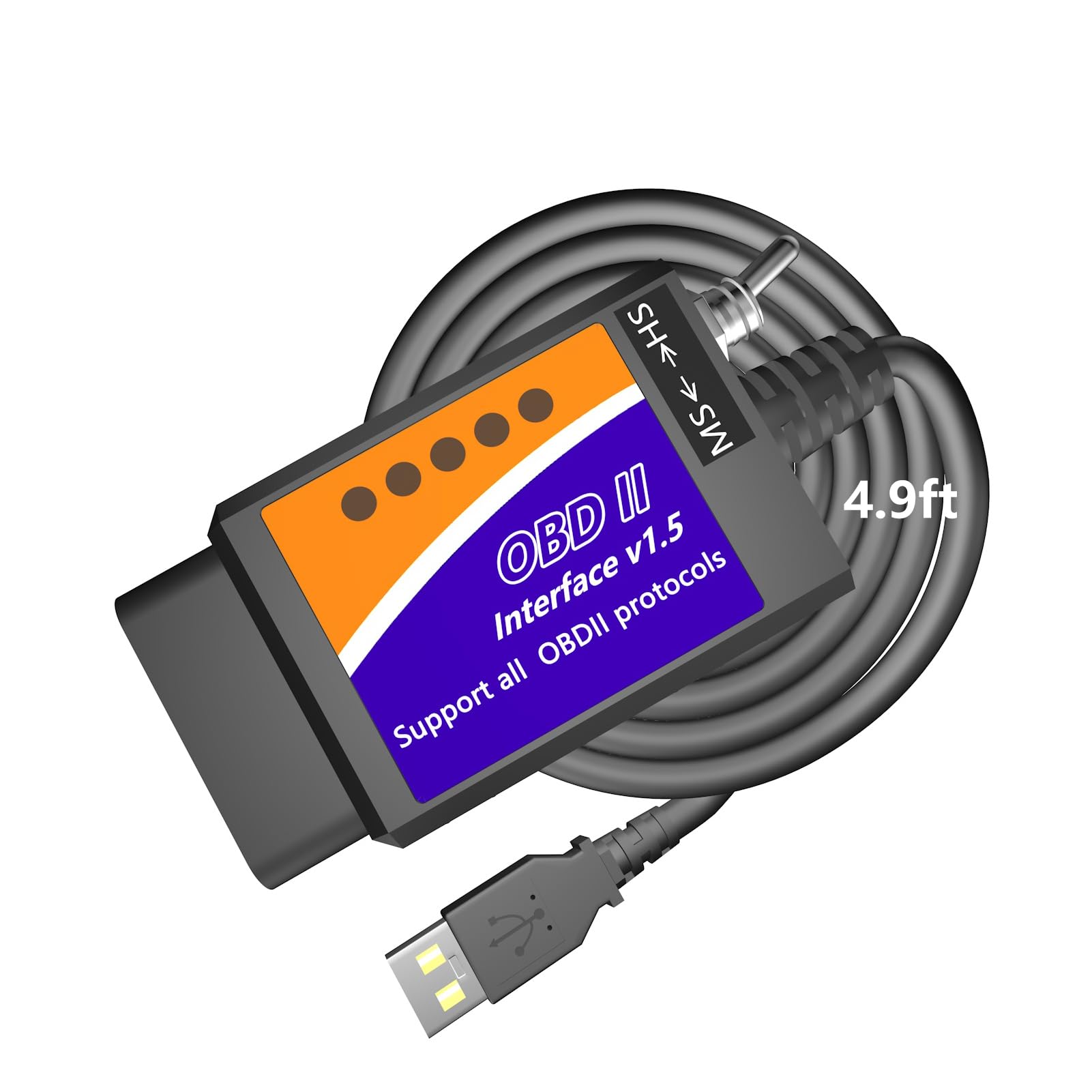
We recommend this adapter for Windows users who want to run DashCommand, FORScan, or similar software on supported Ford, Lincoln, Mercury, and Mazda vehicles.
Pros
- Long cable gives us room to place a laptop on the passenger seat.
- Switch supports both HS-CAN and MS-CAN networks.
- Reads codes and displays live vehicle data.
Cons
- Requires a Windows x86/x64 computer and installed drivers.
- Does not work directly with iPhones, Android devices, or macOS.
- Programming features depend on the vehicle’s installed modules.
During testing, the 4.9-foot cable made the adapter easy to use from either front seat. We could connect the vehicle, position a laptop comfortably, and monitor data without pulling on the OBD2 port.
The adapter worked well for basic scanning and live-data viewing. Its CAN switch also makes it useful with FORScan when accessing different vehicle modules. DashCommand compatibility may depend on the software setup and vehicle, so we would confirm support before buying.
Setup takes some effort. We needed to install the Windows driver and compatible software, and the included guidance may not answer every programming question. We also would not use it for unsupported brands such as Dodge or Ram.
This MOCATEC adapter suits DIY users with a Windows laptop who want code reading, sensor monitoring, and selected Ford-family adjustments. We would skip it if we need a phone-based scanner or a plug-and-play macOS device.
OBDLink MX+ Bluetooth Scanner

We recommend the OBDLink MX+ for drivers who want a dependable DashCommand adapter with broad phone and computer support.
Pros
- Connects with iPhone, Android, and Windows devices
- Works with DashCommand and several other diagnostic apps
- Provides access to more vehicle data than basic code readers
Cons
- Costs more than many basic OBD2 adapters
- Compatibility and available data vary by vehicle
- Setup may take some time with advanced apps
We found the MX+ easy to pair and steady during normal driving. DashCommand recognized it without much trouble, making it useful for viewing live data and tracking vehicle performance.
The adapter also supports several vehicle systems beyond standard engine codes, including some ABS, airbag, and tire-pressure data. We would still check the compatibility guide first, since the available parameters depend on the vehicle.
Its protective features add practical value for regular use. Over-voltage protection and battery-drain safeguards help when we leave the adapter connected, while firmware updates can keep it useful over time.
The main drawback is price. We think the MX+ makes more sense for regular monitoring, troubleshooting, or advanced app use than for drivers who only want to clear an occasional check-engine light.
Veepeak Mini Bluetooth OBD2 Scanner

We recommend this adapter for Android users who want basic engine diagnostics and DashCommand data without paying for a larger scan tool.
Pros
- Connects quickly with many Android phones and tablets
- Reads and clears basic check-engine codes
- Small design stays mostly out of the way
Cons
- Does not support iPhone or iPad
- Requires a separate compatible app
- Cannot access systems such as ABS, airbags, or transmission controls
We found the Veepeak Mini easy to use with supported Android apps. After plugging it into the OBD2 port, we paired it through Classic Bluetooth and used the phone as a live dashboard. Data such as engine speed, coolant temperature, throttle position, and fuel trim appeared clearly.
The compact body works well in tight spaces, although some vehicles need a firm push to maintain a steady connection. We also like that the adapter draws power from the OBD2 port, so it does not need a separate battery or cable.
This model handles generic engine diagnostics on most 1996 and newer US cars and light trucks. It can read trouble codes, show freeze-frame data, and check emissions readiness, but it will not replace a professional tool for manufacturer-specific repairs.
Before buying, we would confirm both the phone and app requirements. Classic Bluetooth limits this adapter to Android devices, and app support can vary for hybrids and electric vehicles.
Binyoansm OBD Dash Cam Power Cable
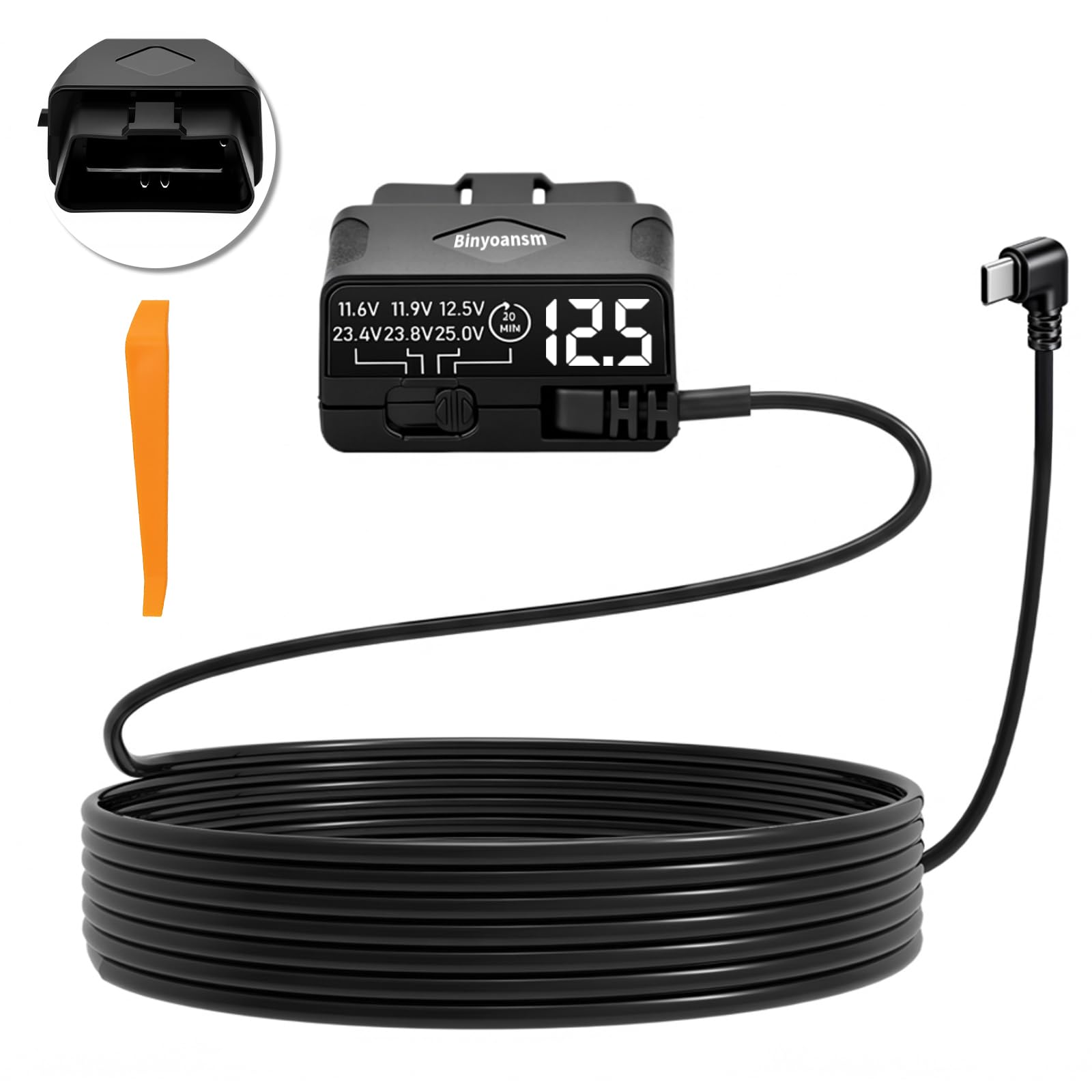
We recommend this adapter for drivers who want simple USB-C dash-cam power and parking-mode support, provided their vehicle keeps the OBD2 port powered after shutdown.
Pros
- Plugs into the OBD2 port without fuse tapping
- Shows live voltage and offers adjustable battery protection
- Includes a long cable and USB-C connection
Cons
- Parking mode depends on constant OBD2 power
- The 20-minute timer may not work with every dash cam
- It fits USB-C cameras only
We found the installation quick and clean. The adapter connects directly to the OBD2 port, so we did not need to remove panels or use the car’s 12V outlet. The 11.5-foot cable gives us enough reach for a neat route to a front-mounted camera.
The LED display makes battery voltage easy to check at a glance. We also like the selectable cutoff levels, which let us choose how early the adapter stops powering the camera. This adds useful protection against battery drain, though we would still confirm the setting with a multimeter or the vehicle manual.
Compatibility requires some care. The car must provide continuous 12V power through the OBD2 port when switched off, and the dash cam must use USB-C. Some users report reliable ignition control, while others mention that the timer stayed active longer than expected. We would test parking mode before relying on it.
Autel GM 12-Pin to 16-Pin Adapter Cable

We recommend this cable only for users with a compatible GM vehicle, a 12-pin OBD1 port, and a separately powered scanner that works with DashCommand.
Pros
- Simple plug-and-play connection
- Solid metal and plastic construction
- Helps reduce wear on the vehicle port
Cons
- Does not provide power to the scanner
- Compatibility varies by vehicle and scan tool
- Some users reported failed connections
We found the adapter easy to connect between an older GM vehicle and a standard 16-pin scanner. Its short design keeps the setup tidy, and the connectors feel firm during use.
This cable does not act as a scanner or diagnostic tool. We also found that it cannot power a scanner through the 12-pin vehicle port, so our scan tool needed its own power source.
Compatibility remains the main concern. Some users reported successful connections with older vehicles, while others could not communicate with their scanners. We recommend confirming support for both the vehicle and DashCommand before buying.
Phudotiya OBD2 USB-C Power Cable
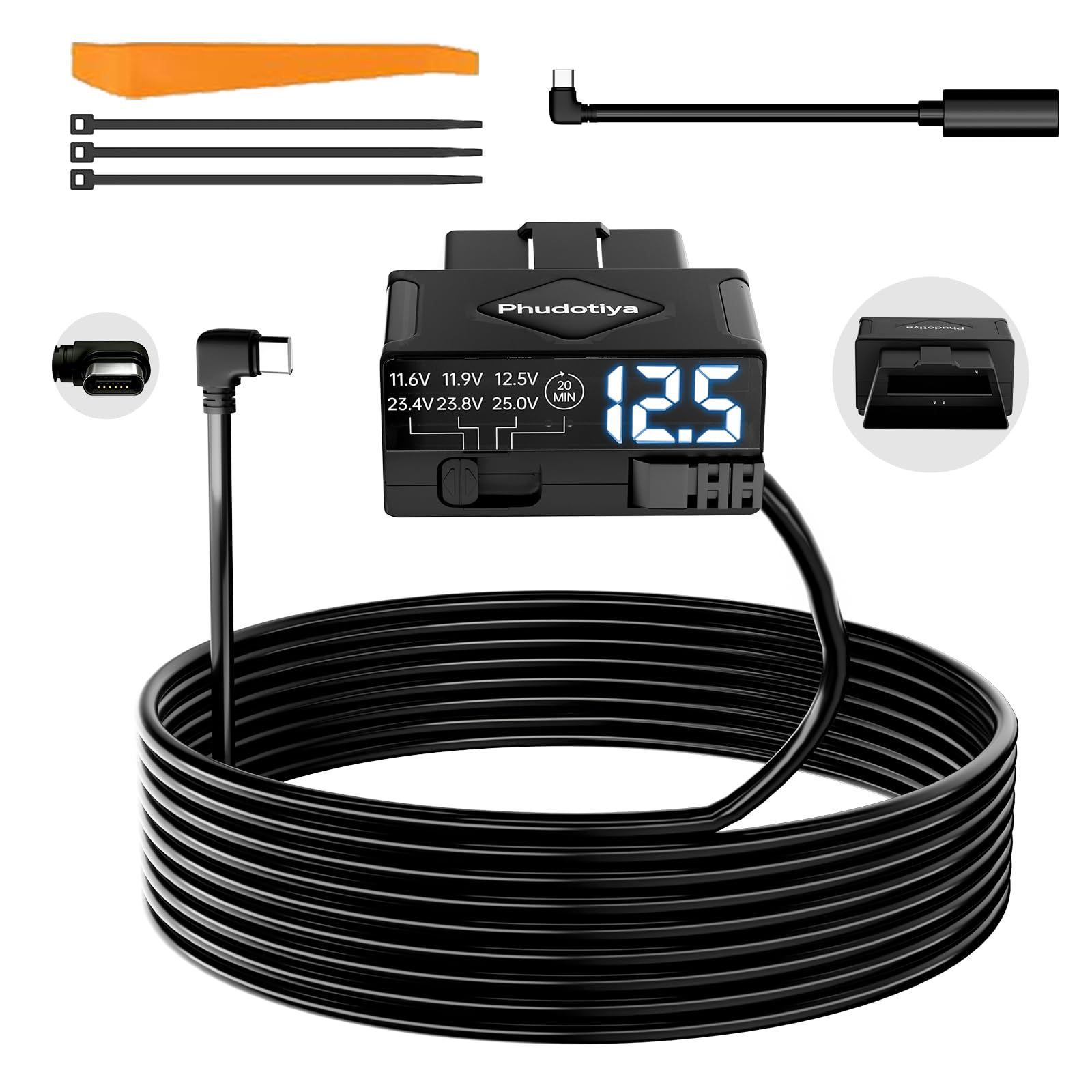
We recommend this adapter for DashCommand users who want simple OBD2 power, parking-mode support, and adjustable battery protection without installing a traditional hardwire kit.
Pros
- Installs through the OBD2 port without fuse work or special tools
- Shows vehicle voltage and offers adjustable cutoff settings
- Supports USB-C dash cams, GPS units, and radar detectors
Cons
- Some vehicles may keep power active after shutdown
- A few users reported camera freezing or unusual behavior
- Compatibility can depend on the dash cam and included adapter cable
We plugged the adapter into the vehicle’s OBD2 port and connected a USB-C dash camera. The setup took only a few minutes, and the compact unit avoided the need to remove trim or access the fuse box.
The ACC detection is useful for switching between driving and parking modes. However, vehicle behavior can vary. Some users found that the adapter needed its 20-minute timer setting to stop supplying power after the car shut off.
We also liked the built-in LED voltage display and selectable low-voltage limits. These features make it easier to monitor the battery and reduce the risk of excessive drain, though we would still confirm that the adapter works properly with our specific camera before relying on continuous parking recording.
The Phudotiya kit includes an A8B8 cable, which may help with certain devices. For DashCommand setups, it provides a convenient power source, but buyers should check the camera’s connector and power requirements first.
XMSJSIY OBD2 Power Adapter

We recommend this adapter for powering a DashCommand setup or other 12V device when you need a simple, constant power connection through the OBD2 port.
Pros
- Simple plug-and-play setup
- Built-in fuse for added protection
- Thick cable feels durable and flexible
Cons
- Provides power only, not OBD2 data
- Constant power can drain the vehicle battery
- Short cable may limit placement options
We found the adapter easy to install: plug the OBD2 end into the vehicle and connect a charger or accessory to the female socket. Its 0.5-meter cable works well for nearby devices, though it may feel restrictive if we need to route a cable across the dashboard.
The adapter supplies 12V power without using the vehicle’s original cigarette lighter socket. That makes it useful for a dash camera, GPS unit, tire inflator, or other low-power accessory. The fused connection adds a helpful layer of protection.
DashCommand users should note that this is not a scan cable or wireless interface. It cannot send vehicle data to the app, so we still need a separate compatible OBD2 adapter for DashCommand’s diagnostic features.
Because the connection can remain powered while the vehicle is parked, we should unplug accessories when we do not need them. Overall, this adapter suits drivers who need a steady 12V outlet rather than an OBD2 data connection.
Buying Guide
We should choose an adapter that clearly supports DashCommand and the vehicle’s OBD2 system. Check the app’s current compatibility details before buying, since support can vary by operating system, vehicle, and adapter connection type.
| Feature | What to look for |
|---|---|
| Connection | Bluetooth, Wi-Fi, or USB that works with our phone or tablet |
| Compatibility | Support for the device’s operating system and vehicle |
| Protocol support | Coverage for the OBD2 protocols used by our vehicle |
| Data speed | Fast, stable communication for gauges and live data |
| Power control | Automatic sleep or low-power use when the vehicle is off |
| Build quality | Secure plug, strong casing, and reliable connections |
A wired USB adapter can provide a stable connection, but it may limit device placement. Wireless models offer more flexibility, while Bluetooth and Wi-Fi may work differently with each operating system.
We should avoid very cheap adapters with unclear specifications, limited support, or poor user documentation. A product with firmware updates and responsive technical support can make setup and troubleshooting easier.
Before ordering, we should confirm the return policy and check whether the adapter supports the data we plan to view. Basic engine codes may work on many vehicles, but manufacturer-specific information may require additional support.
Editor’s Choice
We recommend the OBDLink MX+ for drivers who want a reliable DashCommand-compatible OBD2 adapter. It supports Bluetooth connections on iOS and Android devices, provides quick data access, and includes strong vehicle coverage.
Its compact design stays connected to the vehicle’s OBD2 port without taking up much space. The adapter also uses built-in security features that help protect vehicle data during wireless communication.
| Feature | OBDLink MX+ |
|---|---|
| DashCommand support | Yes |
| Device support | iOS and Android |
| Connection | Bluetooth |
| Vehicle coverage | Cars, trucks, and many newer models |
| Best for | Daily monitoring and diagnostics |
We value the MX+ for its stable connection and broad compatibility. It works well for viewing live engine data, checking diagnostic trouble codes, and monitoring vehicle systems through DashCommand.
Before buying, we recommend checking your vehicle’s model year and the app’s current compatibility list. Some advanced features depend on the vehicle and may require additional app support.
Conclusion
We should choose a DashCommand-compatible OBD2 adapter based on our device, vehicle, and intended use. A wired adapter can provide a steady connection, while Bluetooth and Wi-Fi models offer more convenience.
Before buying, we should confirm:
- Compatibility with our phone, tablet, and vehicle
- Support for the required OBD2 protocols
- Connection type and range
- App support, including DashCommand compatibility
- Build quality and safety features
A reliable adapter helps us view live vehicle data, read diagnostic trouble codes, and monitor performance through DashCommand. We should select a model from a reputable brand and avoid products that make unclear compatibility claims.
We also need to use the adapter responsibly. Diagnostic data can guide basic checks, but it does not replace professional service when a fault affects safety or requires complex repairs.
FAQS
What is a DashCommand-compatible OBD2 adapter?
We use this adapter to send vehicle data from the OBD2 port to the DashCommand app. It can display information such as engine speed, coolant temperature, fuel data, and diagnostic trouble codes, depending on the vehicle.
Which connection type should we choose?
We can choose a Bluetooth, Wi-Fi, or wired adapter. Bluetooth models usually work well with Android devices, while Wi-Fi models often suit iPhones and iPads. We should check the adapter’s operating system support before buying.
Will every adapter work with DashCommand?
No. We should select an adapter that supports the required OBD2 protocols and lists DashCommand compatibility. Low-quality adapters may disconnect, provide incorrect readings, or fail to communicate with some vehicles.
Does the adapter clear check-engine codes?
Many compatible adapters let us read and clear diagnostic codes through DashCommand. Clearing a code does not repair the underlying problem, and the warning light may return if the fault remains.
Can we leave the adapter plugged in?
We should unplug it when the vehicle sits unused for long periods. Some adapters continue drawing power and could drain the battery, especially in older vehicles.
What should we check if the app cannot connect?
- Confirm that the adapter has power.
- Turn on the correct phone connection.
- Select the adapter in DashCommand’s settings.
- Check that the vehicle uses a supported OBD2 protocol.
- Restart the app and adapter.
